First Launch
What you see
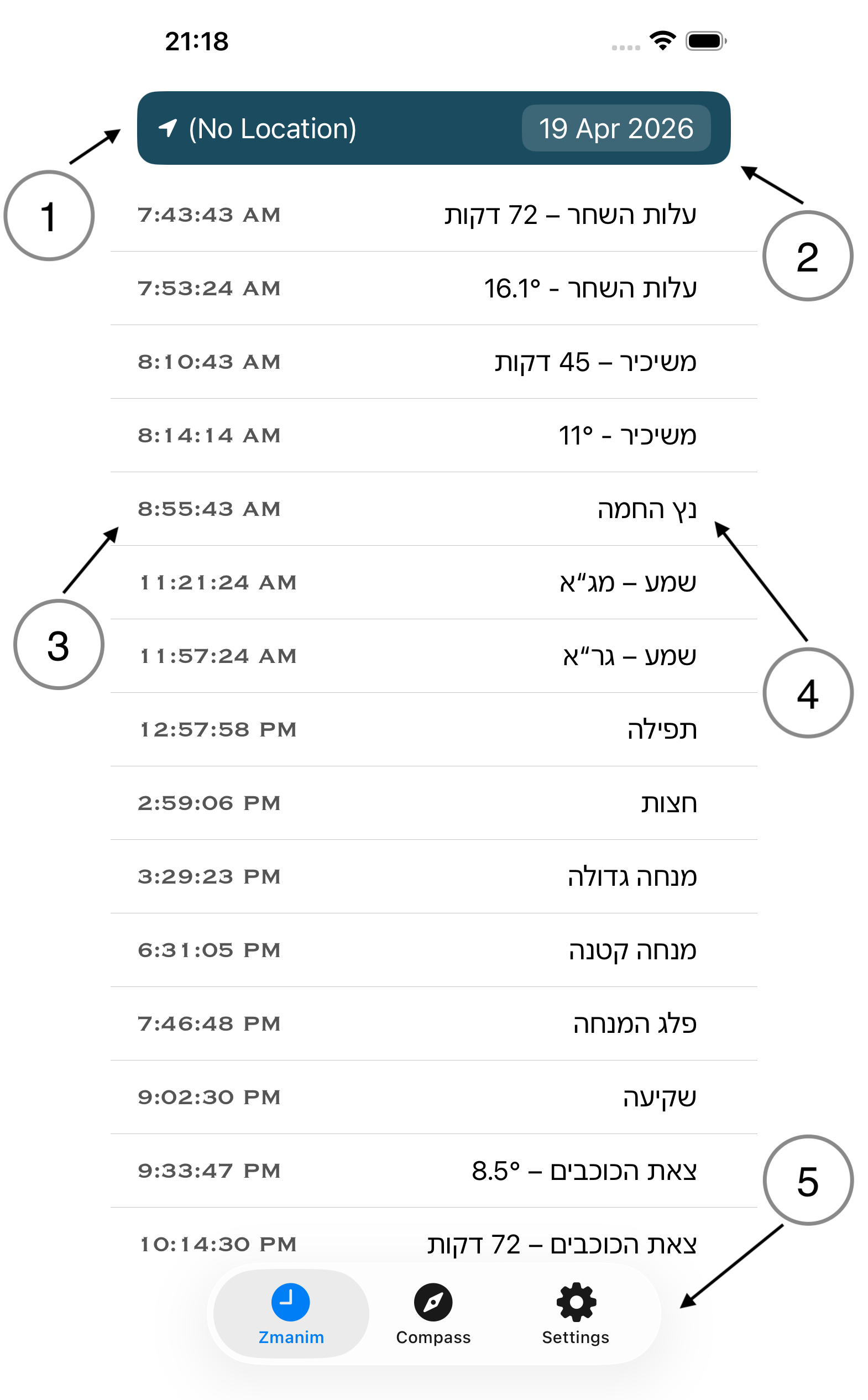
When the app is launchd for the first time, you are presented with the following:
- Location picker. To start, there are no locations defined. Tapping the picker will prompt you to add a location.
- Date picker. Select a date for which to view zmanim. When launched, the app will have the current date selected.
- The times. The formatting follows your region's default formatting for time (12 or 24 hour clock).
- The titles. User configurable titles for each zman. Zmanim Advanced ships with 2 lists: one with Hebrew titles and one with transliterated or translated English titles.
- The tab bar. The tabs are: Zmanim, Compass, Settings, and each will be described in its own section of this manual.
Trivia
When no location is selected, Zmanim Advanced is calculating zmanim for longitude 0 (zero) and latitude 0 (zero), which is somewhere in the Atlantic Ocean. Not particularly useful, but now you know!
Where to start
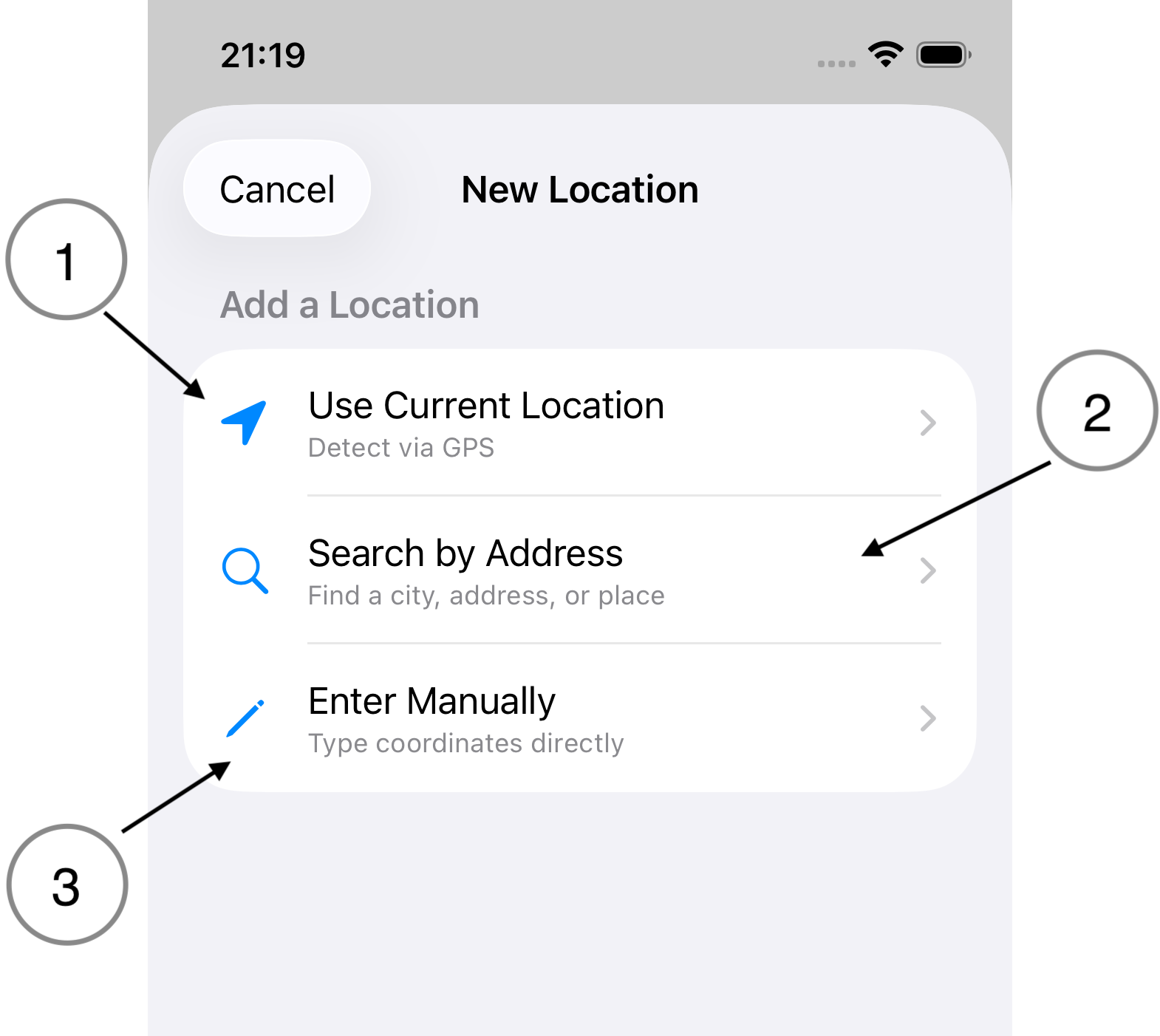
To make use of Zmanim Advanced, you need at least one location defined. To get started, tap the location picker to start choosing your location.
- Use Current Location. Zmanim Advanced requires permission to obtain your current location.
- Search by Address. You can search for a city, state, country, or even a well-known location or a street address. This option is particularly useful when you occasionally want to check zmanim for another town, but you don't need a more precise location within the town.
- Enter Manually. This option is useful if you have precise coordinates you wish to enter.
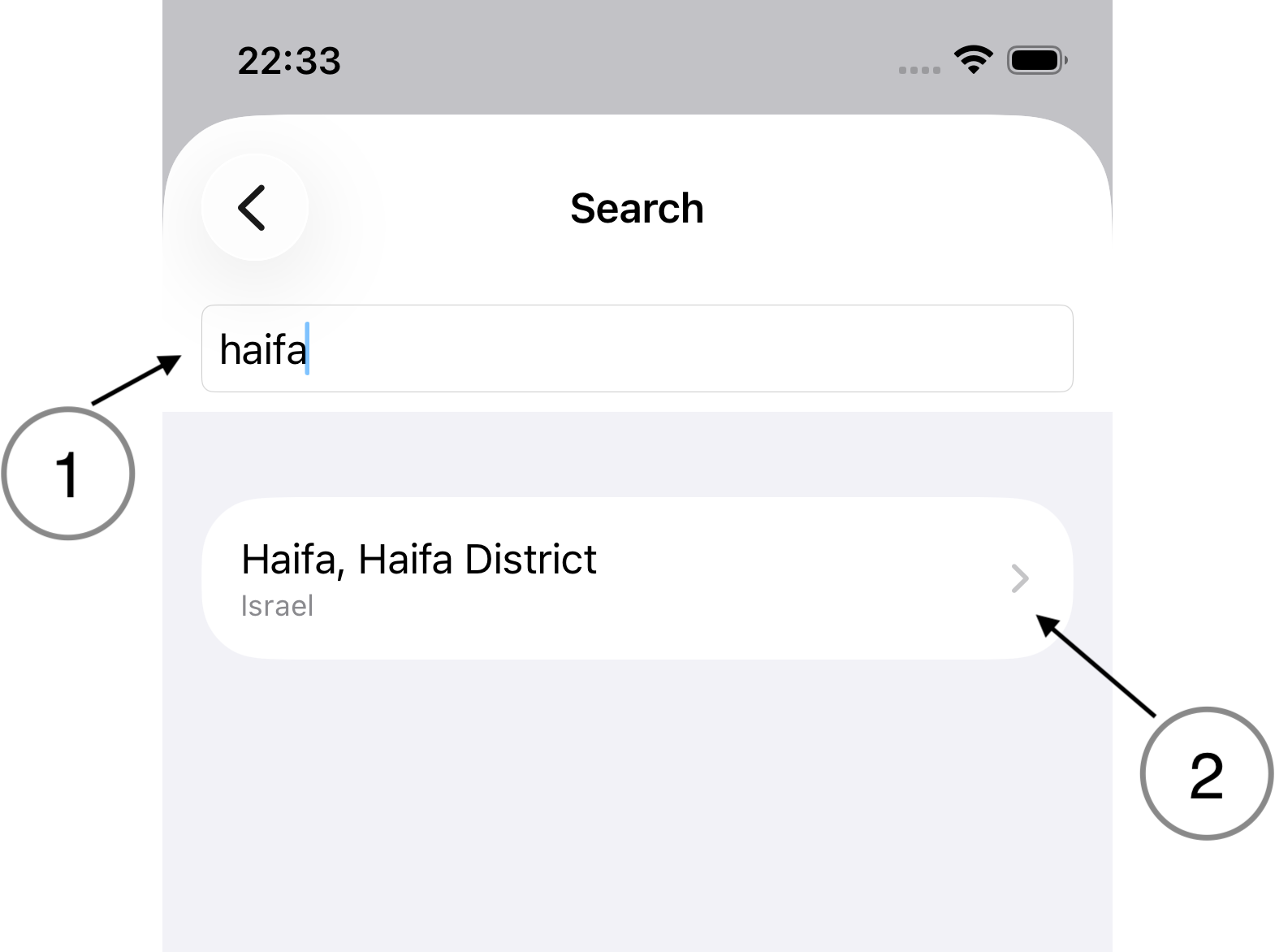
Here we have elected to choose a location by searching by address.
- Search field. Enter the name or address of the location. Zmanim Advanced searches as you type.
- Search results. Select the correct location when it appears in the results.
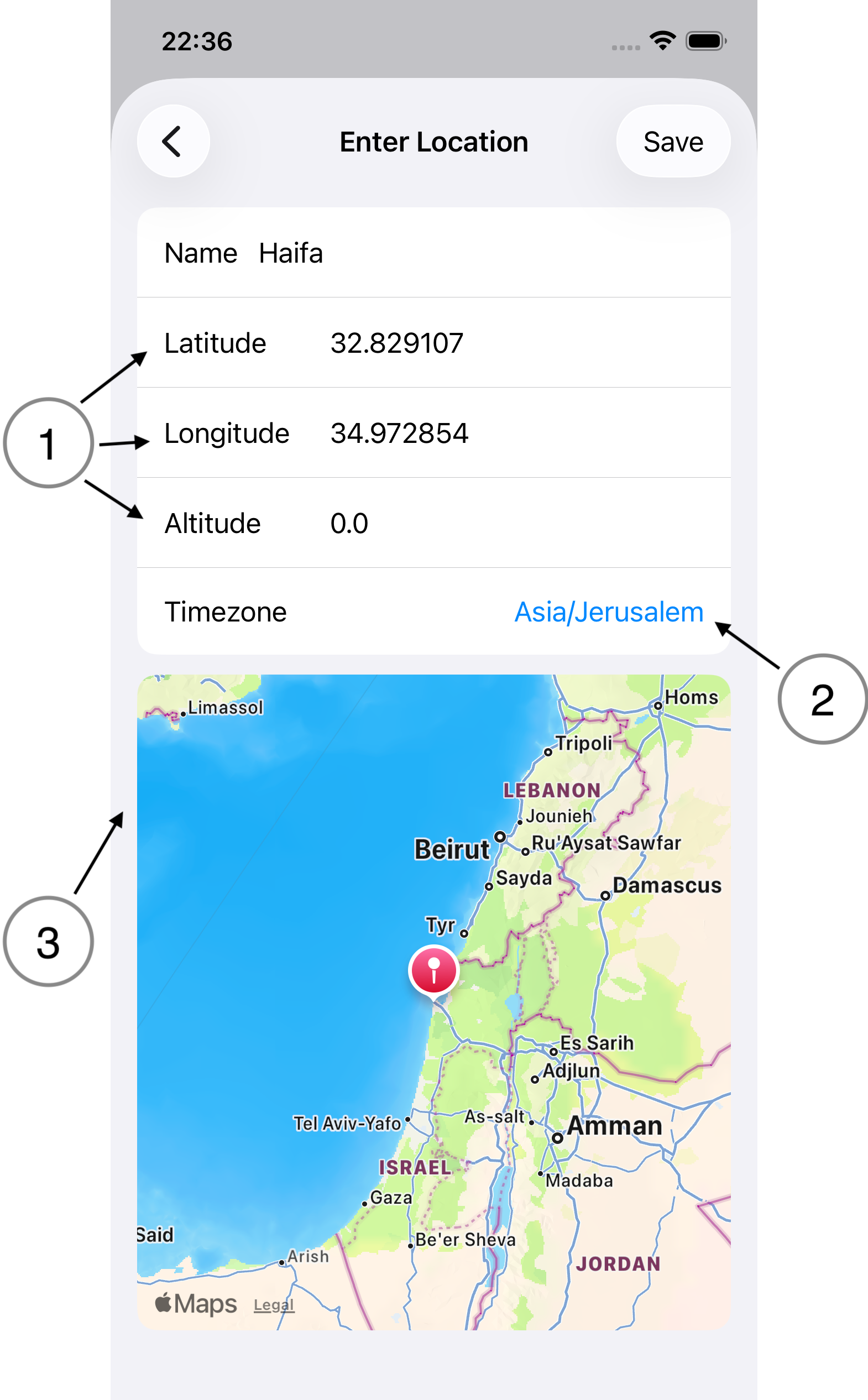
- Coordinates.
- Latitude. North/South position. Enter positive numbers for north of, and negative numbers for south of, the Equator.
- Longitude. East/West position. Enter positive numbers for east of, and negative numbers for west of, the Prime Meridian.
- Altitude. Height above sea level in meters. Altitude affects apparent sunrise and sunset.
- Time Zone. The time zone in which the location is situated. Times are always calculated in UTC, and then adjusted for the selected time zone before being displayed.
- Map. The map shows a pin at the coordinates entered in their respective fields. You can also tap-and-hold on the map (long press) to choose a location. The coordinate fields will update accordingly.
Warning
Any time zone may be selected, but you're more likely to confuse yourself than to find it useful. If the correct time zone is known to the app, it will be pre-selected when the screen is entered. Always double-check!
Example: why you want the correct time zone selected
scenario
- you live in New York.
- you have family in Los Angeles.
- you want to know, roughly speaking, when shabbat will begin for them (candle lighting)
- add a new location by searching for Los Angeles.
- note that the time zone is set to America/Los Angeles.
- save the location and select it as your current location.
Now, when you look at the zmanim for this location, the times will display as local for Los Angeles.
Example: On April 19, 2026, candle lighting in NYC was at ~7:19 PM. For the same date, in LA, candle lighting was ~7:08 PM. If the time zone for LA is accurate, you will see this time. If you selected your own time zone of America/New York, you'd see a time of ~10:08 PM!