Sets
How it fits
A set describes where a zman displays. For a zman to display on the Zmanim tab, it must be within at least one set that is itself enabled.
- Edit. Sets can be reordered. The order in which sets appear on this screen determines the order in which they appear on the Zmanim tab.
- Display style. On the Zmanim tab, sets can be displayed one per page, or they can be displayed as a single list.
- Sets. Tap a set to configure it.
- Visibility toggle. Enable to have the set appear on the Zmanim tab.
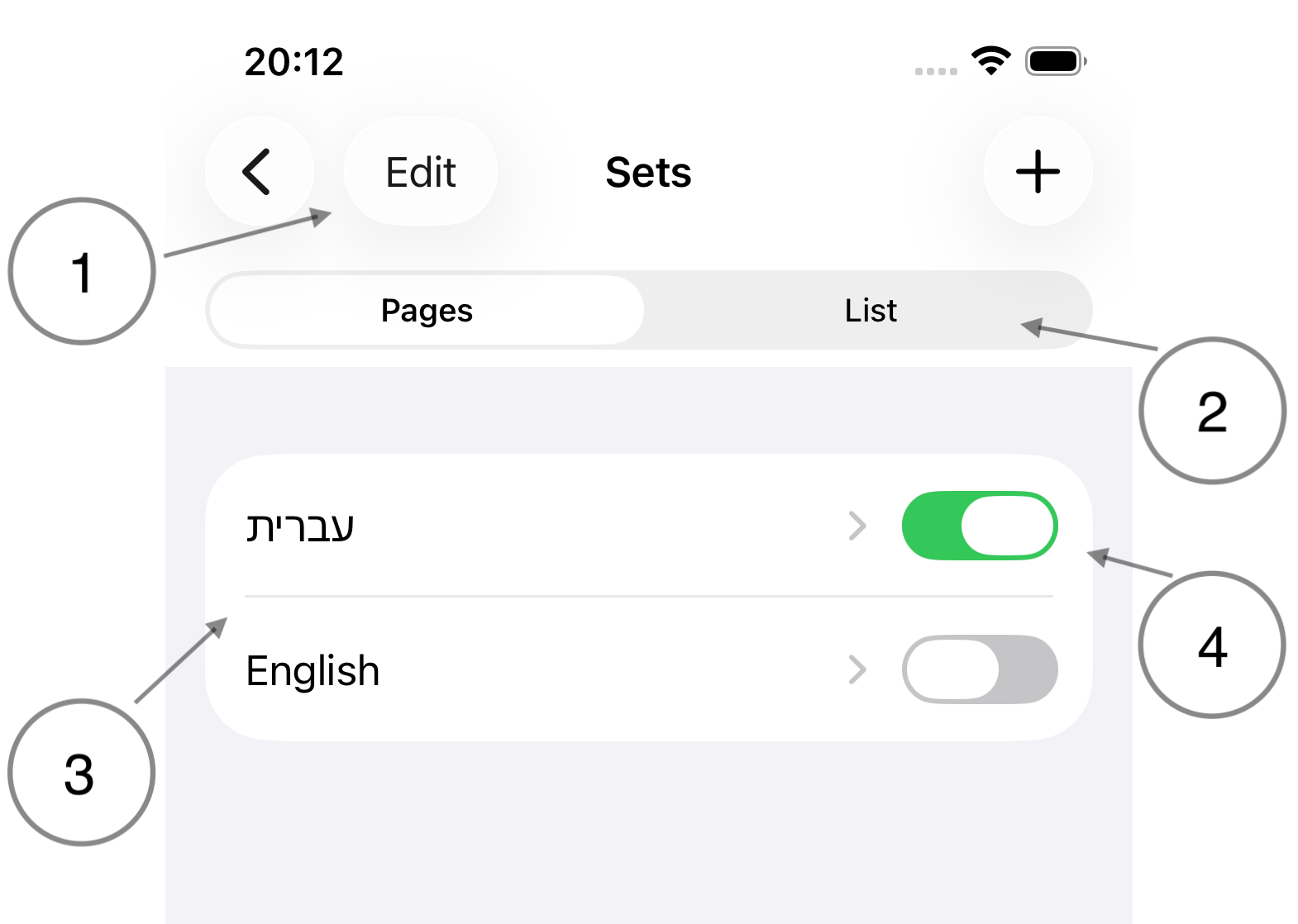
To edit a set, tap the corresponding row. To add a new set, tap the + button in the upper right.
Add/Edit a set
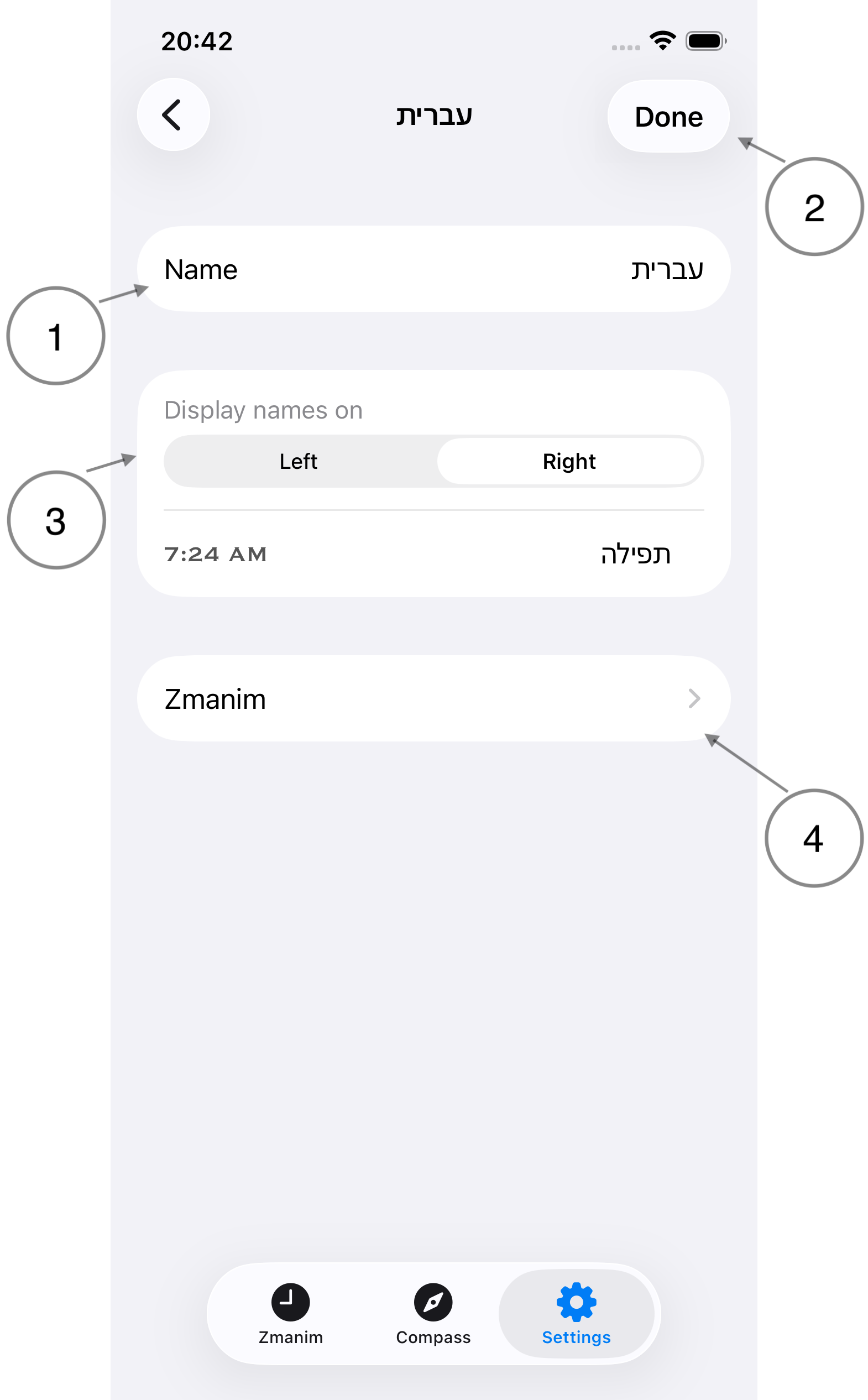
- Name. The name of the set. In List mode, this will be the section title. This field is mandatory.
- Done/Save. When editing a set, the Done button will dismiss the editor. When creating a new set, the Save button will save the set before dismissing.
- Display selector. Choose how zmanim are arranged on the Zmanim tab.
- Left: the zman's title will be displayed on the left, with the time on the right.
- Right: the zman's title will be displayed on the right, with the time on the left.
- Zmanim. Lists the zmanim included in the set. Zmanim can be added or removed.
Just below the display selector is a randomly-selected zman showing how layout is affected.
Done vs Save
When the button says Done, it means changes are being saved as they are made. When the button says Save, changes aren't saved until the button is tapped.
Zmanim
Tap on the Zmanim button (above) to edit the list of Zmanim contained within the set.
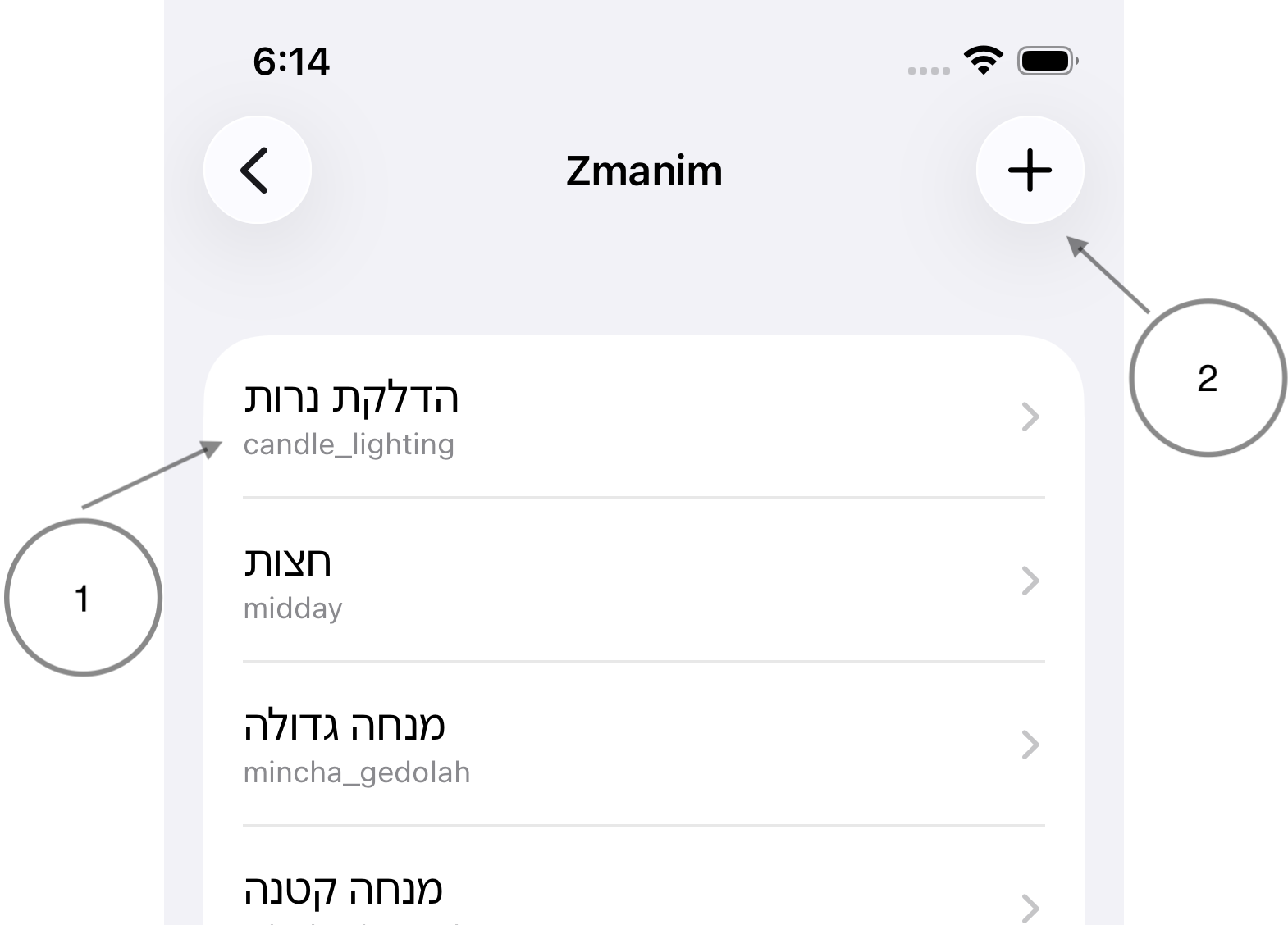
- Zmanim list. The list contains the zmanim that are displayed as part of the edited set on the Zmanim tab.
- Add. Zmanim not already present in the set may be added.
To remove a zman from the set, swipe left and press delete. Removing a zman from the set does not affect the zman in any way.
Timely information
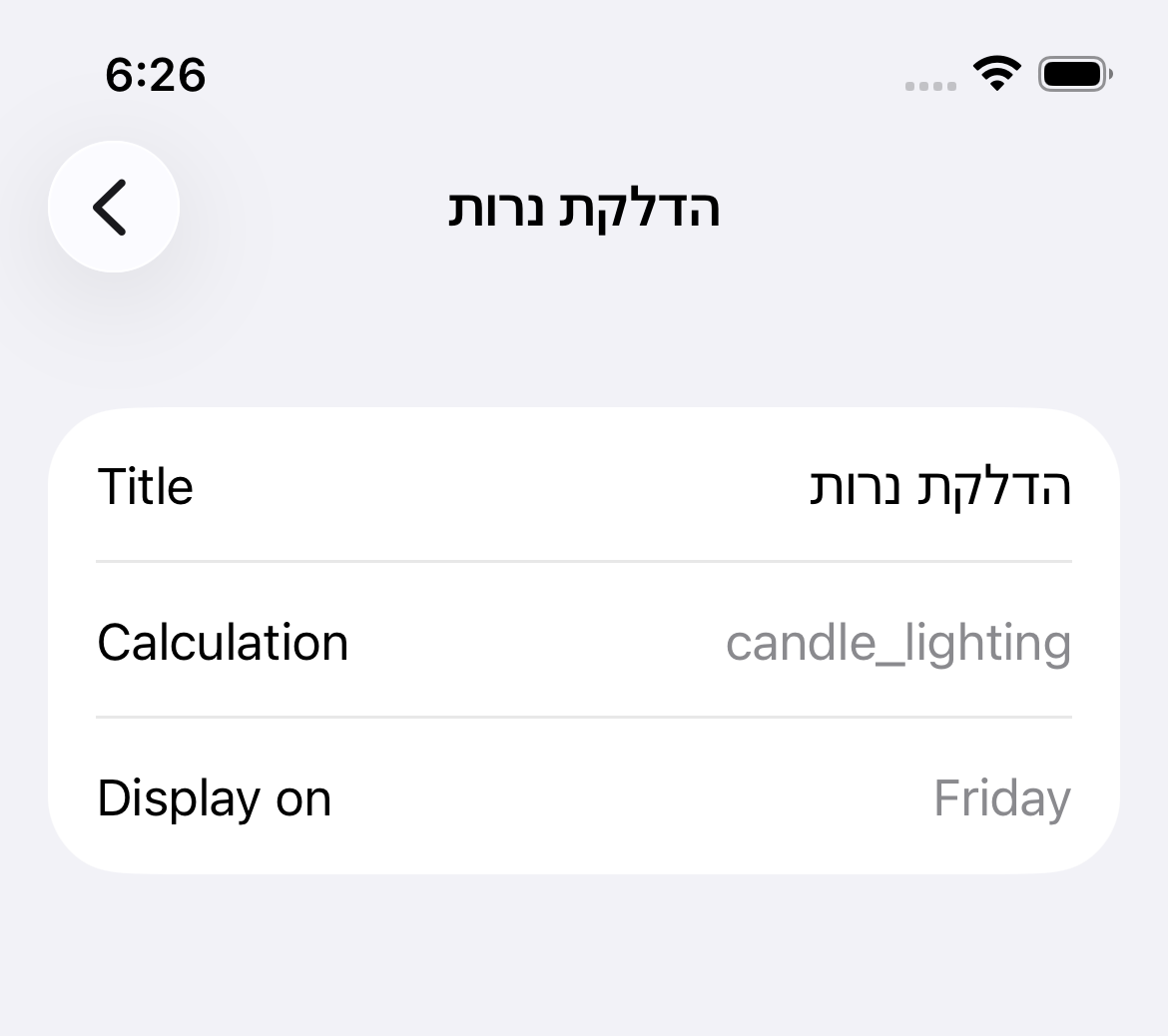
Tapping a zman in the list will display salient details about the zman. The zman cannot be changed from this screen.
For details, see Zmanim